The Internet is an incredible universe of knowledge, but it is also a minefield of inappropriate content. Today, one of parents’ greatest concerns is to have control over what their children are accessing inside the home. However, setting up locks on each mobile phone, tablet and computer individually can be an exhaustive and technical task too.
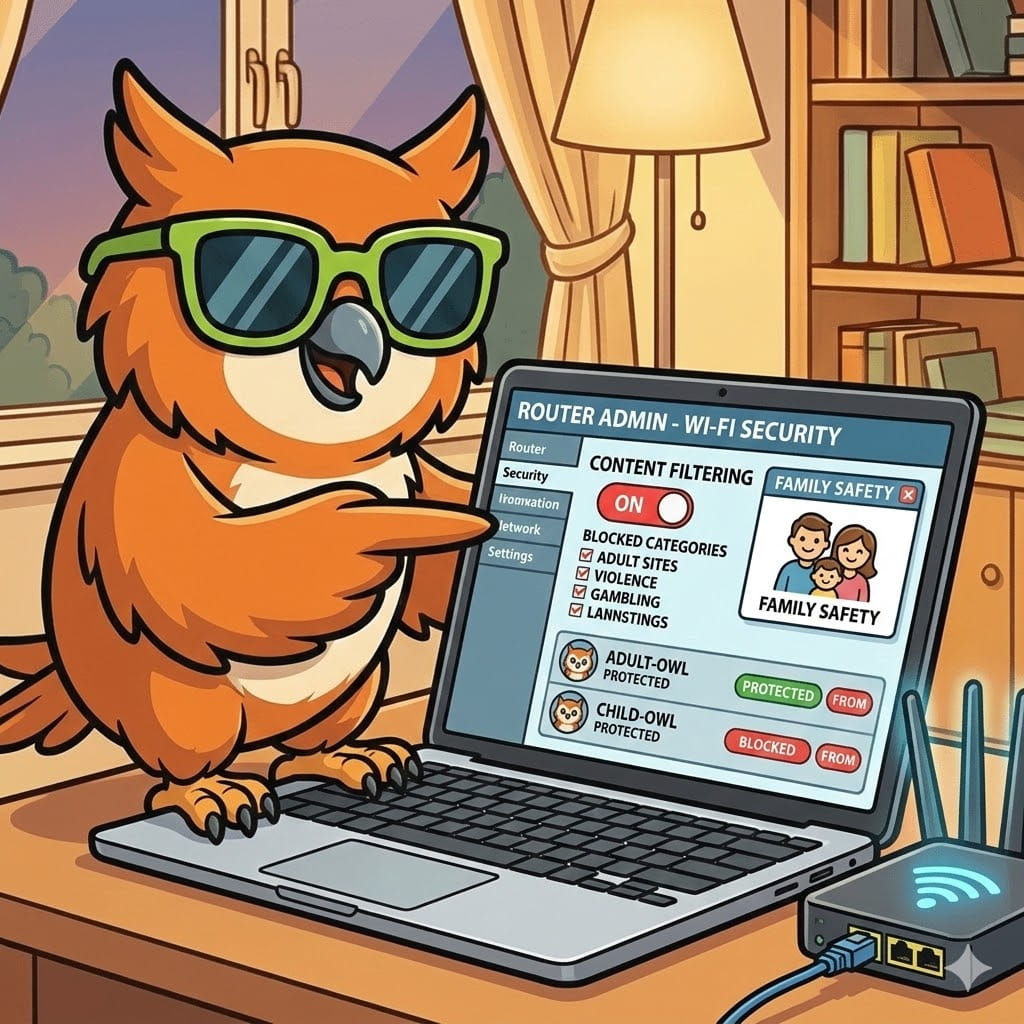
Therefore, learning how to block adult websites on the Wi-Fi router became the first line of defense of thousands of families in 2026. In fact, by applying the direct lock on the "source" of your internet, you create an invisible shield that protects all devices connected to your network simultaneously.
In this definitive guide, we will explain exactly how this technology works, present the best free tools available and provide a simple step by step for you to shield your connection today.
Why block the content directly on the router?
Firstly, it is crucial to understand the strategic advantage of this method. When you apply content filters directly to your home router, you do not depend on apps installed on your children's devices.
That is, it doesn't matter if the child is using their own phone, an old tablet, the video game in the room (such as PlayStation or Xbox) or Smart TV. Therefore, as long as the device is connected to your Wi-Fi network, the house rules will be applied and dangerous content will be barred before you even click on the screen.
Moreover, this approach solves the problem of "visits". When your son's little friends come to your house and ask for the Wi-Fi password, their phones will also be under the same security rules.
On the other hand, there is a technical limitation that we cannot ignore: the router only has jurisdiction over the local network. Consequently, if the teenager turns off Wi-Fi and uses mobile data (4G/5G) from the mobile operator, this specific block will have no effect. Nevertheless, the Wi-Fi filter remains the most important initial step for the digital hygiene of your home.
The Free Method: The Power of Family DNS
But after all, how does the router know which sites should be blocked and which should be allowed? The answer to this magic is in an acronym of three letters: DNS (Domain Name System).
In simple terms, the DNS functions as the great "phone list" of the internet. When you type "https://www.google.com/search?q=google.com" in the browser, your internet provider consults DNS to translate this name to a numerical IP address that computers understand.
So if we exchange your carrier's standard DNS with a "Family DNS", this new phone book will simply erase the numbers of adult sites, gambling and viruses. This way, when someone tries to access inappropriate content, the site will not be found and will make a connection error.
Currently, there are two global DNS services that offer this filter free of charge and with high speed:
Practical Step: Configuring DNS on Router
Then let's put our hand in the dough. The process may seem intimidating to those who do not work with technology, however, just follow these steps calmly.
Step 1: Access your Router Panel
First of all, you need to get into the brain of your network.
Open your computer browser or mobile phone (which must be connected to Wi-Fi).
Enter the IP address of your router in the address bar. Generally, it is 192.168.0.1 or 192.168.1.1.
Then enter the user and password. If you have never changed, this information is usually printed on a label on the bottom of the device itself (common user: admin, password: admin).
Step 2: Find DNS or DHCP Settings
After logging in, search for menus with names like "Network", "LAN", "DHCP" or "Internet Settings".
The interface varies according to the brand (TP-Link, Intelbras, Vivo, Claro), but the goal is to find the fields called Primary DNS and Secondary DNS.
Step 3: Enter New Numbers (Cloudflare)
Right now, delete the numbers that are there (usually are filled with zeros or the operator IP) and enter the DNS numbers Cloudflare family:
Primary DNS: 1.1.1.3
Secondary DNS: 1.0.0.3
Step 4: Save and Restart
Finally, click "Save" or "Apply". After that, it is highly recommended to restart your router by taking it out of the socket for 10 seconds and reconnecting. This will force all the appliances in the house to adopt the new safety rule.
Hidden Failure: When the Router Not Enough
As detailed above, the DNS method is excellent and solves 80% of the accidental exposure problems of minor children. In the meantime, we need to talk about the remaining 20%.
Teenagers and young adults today are digital natives. That is, they learn very quickly how to overcome technological obstacles. So if your child is determined to access a blocked site, he can simply:
Turn off your mobile Wi-Fi and use the 4G/5G mobile network;
Install a free VPN application that masks internet traffic;
Change DNS manually within the settings of the device itself.
Consequently, relying only on the router to protect a teenager can create a false sense of security.
The Definitive Solution: Safety Layers (Parent Control)
So if you're looking for fail-safe protection in 2026, the ideal strategy is Layer Security.
In other words, you use the Router (DNS) to bar home appliances (TVs and video games), and simultaneously install a professional Parental Control software on your children's phones.
In this advanced scenario, two tools dominate the market because they are practically impossible to circumvent:
1. Qustodio: The Wall Against Vice
If your core problem is over screen time or access to dangerous websites via 4G, the Qustodio It's the main recommendation. That's because It acts directly on the operating system of the device. When you define that the usage limit is over, it closes the apps. In addition, the Qustodio web filter works even if the teenager tries to use Anonymous Mode or turn off Wi-Fi. (Enter your Qustodio affiliate link here)
2. Bark: Monitoring with Artificial Intelligence
On the other hand, if your concern is with who your son talks, Bark It's revolutionary. Instead of just block sites, Bark connects to social networks (WhatsApp, Instagram, Discord) and uses AI to read the context of messages. That wayIf someone sends adult content or is suspected of cyberbullying, you get an alert on your phone with the exact stretch of dangerous conversation. (Enter your Bark affiliate link here)
Frequently Asked Questions (FAQ)
1. Changing DNS slows my internet? On the contrary. Most of the time, premium free providers like Cloudflare (1.1.1.3) are faster than the outdated DNS servers of local operators. So you gain security and speed at the same time.
2. Does router blocking prevent adult videos on YouTube? Unfortunately, not completely.. DNS blocks the main domains of adult content sites. However, YouTube and Google use mixed encrypted connections. To resolve this, you will need to activate "Restricted Mode" directly in your child's YouTube app settings.
3. Do I have to pay for this DNS service? Nope. The IPs mentioned in this guide (OpenDNS and Cloudflare) offer 100% free malware filtering and adult content for home use.
Conclusion: Recover Control of Your Home
Protecting your family from the dangers of the modern digital world does not need to be a seven-headed animal. As we have seen, changing the DNS of your Wi-Fi router is a free attitude that takes less than 10 minutes and brings immediate results to all devices in the house.
However, remember that technology is only a support. Ultimately, the best parental control tool will always be open dialogue with your children about the risks and responsibilities of online life.